

Welcome to GameMaker! One of the most important things you can do as a beginner is to start small and finish what you start. Simple projects may not seem exciting at first, but completing these early projects give you momentum, confidence, and a strong foundation for bigger ideas down the road.
Videogames are like fast conversations between you and the computer. You press a button, the game reacts, things move around, and you see it all happen on screen; over and over, again and again, super fast. This cycle is called the game loop and it’s what keeps everything running. GameMaker handles the game loop for us! All we have to do is tell how it what happens when something happens.
Planning
Let’s build your very first game in GameMaker! It’s called Mr. Exit, and it’s a simple project that shows how the basics of GameMaker work. When the game runs, you’ll see Mr. Exit. If you click on him, the game closes.
This tiny game is a great way to practice thinking like a game developer. Before we build anything, let’s break it down with a simple rule:
IF Mr. Exit is clicked,
THEN the game ends.
That’s it! And really, most games are built on the same kind of logic; just a whole lot more of it. For example:
- IF you press right on the controller, THEN your character moves right.
- IF you hit an enemy, THEN you lose health.
- IF you press the jump button, THEN your character jumps.
Try thinking about your favorite game. What if/then rules do you notice? Once you learn how to turn those ideas into code, you can start building your own games!
Step 1: Create a New Project
Open GameMaker and create a new project. Name it Mr. Exit. If you’re asked which language to use, choose GML (GameMaker Language).
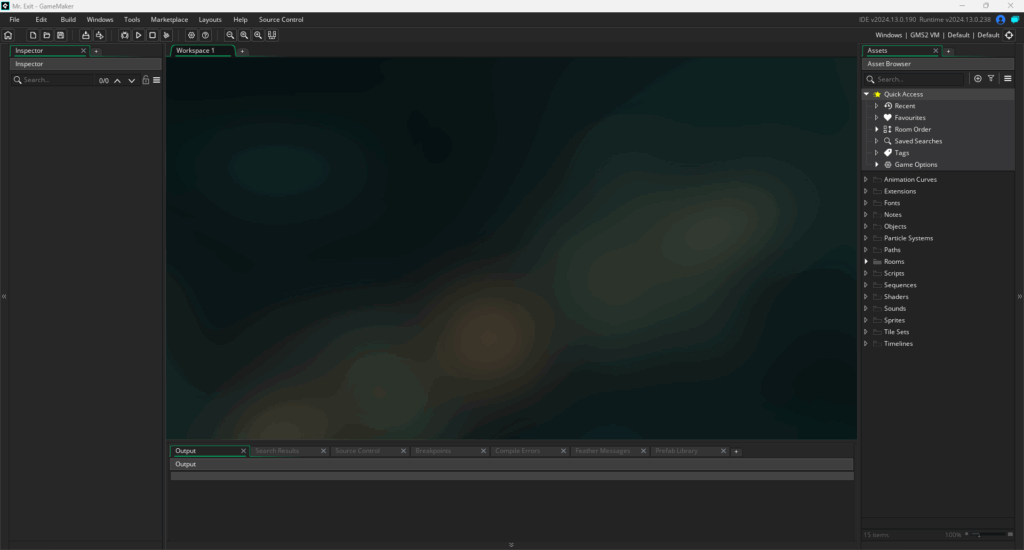
You’ll see a screen with several panels. The one on the right is the Asset Browser. This is where all your game’s parts live: sprites, objects, rooms, and more.
Under the “Rooms” folder, you’ll see a default room called Room1. Every GameMaker project starts with one room, which is where your game plays out.
To test your game, press the Run button at the top toolbar. Go ahead and press it.
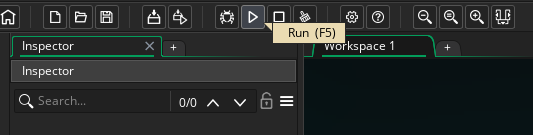
A window should pop up. Your game is running!
But… there’s nothing there yet. That’s because Room1 is empty. Let’s fix that.
Step 2: Add Mr. Exit
To add a character to your game, you’ll need a sprite (an image) and an object (the logic).
Mr. Exit’s Sprite
Start by right-clicking the Sprites folder in the Asset Browser and choosing Create > Sprite. The window that comes up is called the Sprite Preview. Rename it to spr_mr_exit.

This is Mr. Exit! Download and save the image above, then in the Sprite Preview, click Import and choose that image. You should now see Mr. Exit in the preview.
Mr. Exit’s Object
Now let’s give Mr. Exit some behavior.
Right-click the Objects folder and choose Create > Object. Rename it to obj_mr_exit.
In the Object Editor, click the “No Sprite” box and assign spr_mr_exit to it so Mr. Exit shows up in the game.
Think of objects like actors. You give them a costume(sprite), a role (code), and place them on a stage (room). When the game starts, they follow your instructions.
Mr. Exit’s Behavior
We want Mr. Exit to close the game when clicked.
- In
obj_mr_exit, click Add Event > Mouse > Left Pressed. - In the code editor that appears, enter this line:
game_end();
This tells GameMaker to close the game. game_end is a built-in function. The () means “run it,” and the ; ends the command.
…and that’s it! If you click on Mr. Exit with the left mouse button, then the game will end. Your object will look like this:
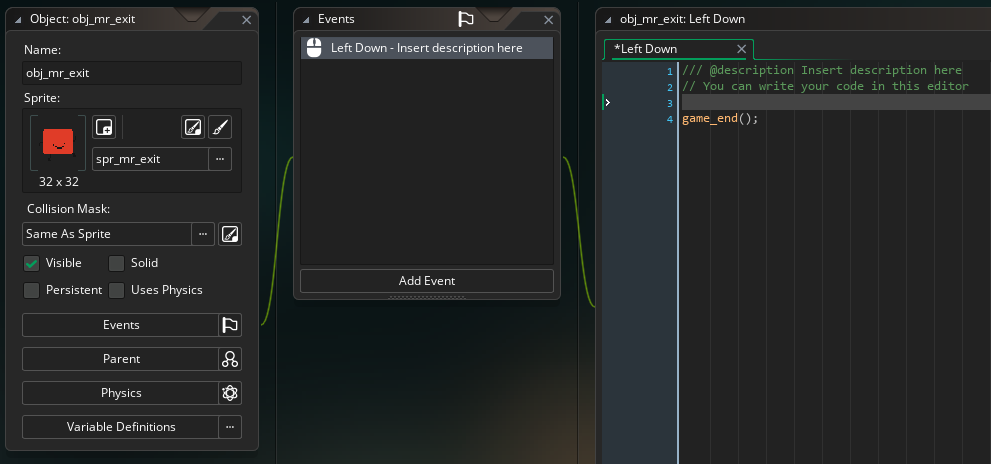
Let’s try the game again. Press Run or press F5 to run the game.
…and it still looks the same. We created a new object, Mr. Exit, but he’s nowhere to be found. We’ve got to put him in the room first! Close the game and get back into GameMaker.
Step 3: Add Mr. Exit to the Room
So far, we’ve created Mr. Exit, but he’s not in the game yet.
Double-click on Room1 to open the Room Editor. In the Asset Browser, drag obj_mr_exit into the room. Anywhere is fine.
Now press Run (or press F5). You should see Mr. Exit!
Click on him. The game should close. Just like we told it to.
What Happening?
GameMaker checks 60 times per second if anything important is happening. In this case:
- If the player clicks Mr. Exit,
- Then the game ends.
You just created your first working game!
What You’ve Learned
- How to start a new GameMaker project
- How to import a sprite
- How to create an object and assign a sprite
- How to use events and code
- How to place an object in a room
Sure, this isn’t the next hit game, but it works! You’ve taken the first real step toward learning GameMaker.
In the next tutorial, we’ll build on Mr. Exit to give it a little more polish.